Quick Start Guide
MDOfficeMail Secure Email — Revision 2.0, Sept 20, 2022
Webmail login URL depends on the email ID suffix selected by you. Below is the list of web addresses for each email ID suffix:
| Email Suffix | Webmail URL |
|---|---|
| Your own domain | https://xxxxx.mdofficemail.com (xxxxx is your domain-specific word) |
| @hipaamail.net | https://hipaamail.mdofficemail.com |
| @hipaamail.us | https://hipaa.mdofficemail.com |
| @mdofficemail.com | https://mail.mdofficemail.com |
| @mdomail.com | https://mdom.mdofficemail.com |
| @medsecuremail.com | https://medsecure.mdofficemail.com |
| @phymail.com | https://phy.mdofficemail.com |
| @medofficemail.com | https://med.mdofficemail.com |
| @secur-mail.com | https://secur.mdofficemail.com |
| @securdraft.com | https://securedraft.mdofficemail.com |
User has to contact MDofficeMail Support to reset their password, along with their credentials including the last 4 digits of your credit card on file, if Password Retrieval Questions & Answers are not configured. Further, the user needs to wait until the Support Team responds to the request.
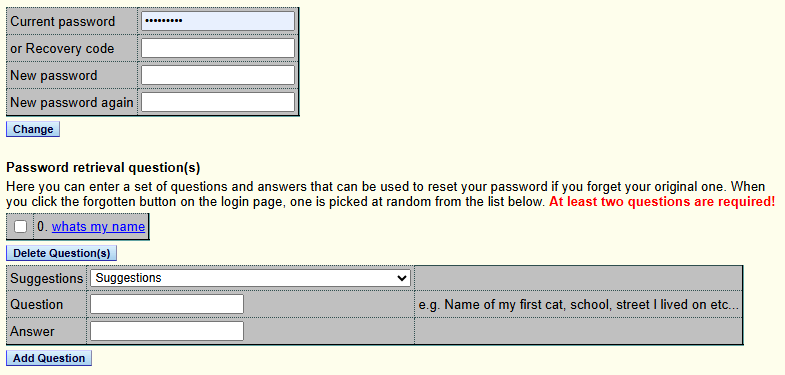
To avoid this, we strongly recommend MDofficeMail users configure Password Retrieval Questions & Answers:
- Log into webmail
- Go to Options > Change Password
- Questions and Answers can be entered in this window. Minimum 2 sets of Q & As are required
- Log into webmail.
- Go to Options > Preferences > Change Password.
- Enter new password, confirm the new password, and click Change.
- Browse
https://mdofficemail.com/subscriptions/accountadministration.aspx - Login using your admin email ID and password (email ID created at the time of subscription)
- Click the tab "Manage Email Accounts"
- Add other users (email IDs and passwords) and save.
- From here you can edit/delete users and reset the password of a user.
To create users:
- Browse
https://mail.mdofficemail.com/cgi/user.cgi(this page can be accessed from the Account Settings tab on the webmail login page). - Login with your admin username (your admin email ID with @mdofficemail.com suffix) and password.
- Click "Users", enter desired username and password (alpha-numerical, minimum 8 characters).
- Click "Create Account".

To edit/delete users or reset password:
- Click "Account Settings" from the webmail login page (or browse
https://mail.mdofficemail.com/cgi/user.cgi) - Login with your admin username (your admin email ID with @mdofficemail.com suffix) and password.
- Click "Users", click "Search Accounts" next to your domain name. User list is displayed.
- Double-click the username you want to manage.
- To reset password, enter the new password and click "Save user".
- To delete the user, click "Delete User".

a) If while subscribing you selected encryption preference as "Encrypted message delivery by default and plain message delivery on demand" (applies to your own domain, or @mdofficemail.com / @mdomail.com / @medsecuremail.com / @secur-mail.com / @hipaamail.net / @securedraft.com / @phymail.com):
Nothing needs to be done while sending messages from webmail or an email client program (MS Outlook / Apple Mail etc.). Messages are encrypted and securely sent as required.
b) If you selected encryption preference as "Plain message delivery by default and encrypted message delivery on demand" (applies to your own domain, or @hipaamail.us / @medofficemail.com):
- While sending via an email client (MS Outlook, Apple Mail, etc.), type the word
secureor the symbol~at the beginning of the subject line to send an encrypted message. - While using webmail, click the paddle
 lock icon so it displays a "locked" image.
No.
- Messages between MDofficeMail users are secure but not delivered encrypted by default.
- Messages between all domains hosted by MDofficeMail are not encrypted by default.
- You can manually unlock and send a plain (unencrypted) message to any recipient outside your domain.
- You can add email IDs of family & friends so that plain messages are sent to them by default.
a) If your encryption preference is "Encrypted message delivery by default and plain message delivery on demand" (your own domain, or @mdofficemail.com / @mdomail.com / @medsecuremail.com / @secur-mail.com / @hipaamail.net / @securedraft.com / @phymail.com):
- While sending via an email client, type
::in the subject line to send a plain message. - While using webmail, click the Paddle lock icon so it displays an "unlocked"
 image.
b) If your encryption preference is "Plain message delivery by default and encrypted message delivery on demand" (your own domain, or @hipaamail.us / @medofficemail.com), nothing needs to be done — messages are sent without encryption.
Click the Account Settings tab on the webmail login page and enter your email account credentials.
Direct URL: https://mail.mdofficemail.com/cgi/user.cgi
To make sure your email reached the correct person, you can use the validation feature. By sending a message with a validation request, the recipient needs a 6-digit token to open the message, which can be conveyed to them by phone. The validation token is required only by a new recipient, and only for the first message they receive from you.
- While composing/sending a message, click "Options" next to Toggle Cc/BCC.
- Select "Validate" from the dropdown next to "if new".
- Once the message is sent, an auto-generated message with a 6-digit token is delivered to your inbox.
- Call the recipient of the message and give them the token number.

You can prevent the recipient from viewing a message, provided: (i) you sent an encrypted message, and (ii) the recipient hasn't already viewed it.
- Go to "Account settings page" in your webmail login page or browse
https://mail.mdofficemail.com/cgi/user.cgi - Enter your username and password.
- Click "MD Vault" tab on the left side.
- Click "Delete" against the message you want to force expire.
To import emails from your previous/other accounts (POP or IMAP mail server):
- Log in to your webmail.
- Click "Options" > "Preferences"
- Under Preferences, select "Extras"
- Select "Import", click "Configure"
- Enter details and click "Fetch now"

| Remote Host | POP server address of your existing email account followed by : and port number (e.g. pop.gmail.com:995 for Gmail, pop.mail.yahoo.com:995 for Yahoo) |
|---|---|
| User name | Username of your existing email account (e.g. your.name@gmail.com) |
| Password | Password associated with that account |
| Retrieval type | Select POP if you want to import the whole message. Check "Leave on server" if you want to leave a copy in your existing account. |
- Click "View message" in the intimation message received in your Inbox.
- An https page will open in your web browser.
- First-time recipients need to create their credentials as explained below:
| Token Number | Displayed only if the sender wanted to validate your email account. You need to contact the sender to get this 6-digit validation code. It's automatically delivered to the sender's Inbox as soon as the message is sent to the recipient. |
|---|---|
| Password | Please remember this password for future use. |
| Password (confirm) | Enter the same password again. |
| Password Hint | Important — required if the password is forgotten. |
| Watermark | Useful to identify the sender in the future. |
The recipient of a secure message can download and save the message. After decrypting and viewing the message, click the Save button to download the message to the desired location.
The recipient of a secure message can send a secure reply without having an MDofficeMail account. Click the "Secure Reply" tab after decrypting and viewing the message, compose, and send.
- Click "Send me password hint" — an email with the password hint will be sent to the recipient.
- If a Password Hint was not set by the recipient:
- Click "Ask sender to reset password"
- The sender of the message will get an email with a password reset request.
- Sender clicks the link in the message, leading to a webpage.
- Sender clicks "Reset destination account".
- Recipient will receive a message to reset password, then can reset it by clicking "View Message".
MDOfficeMail accounts can be configured in most desktop email client applications, including MS Outlook, Outlook Express, Windows Mail, Apple Mail, etc. Main settings are as follows:
| Setting | Value |
|---|---|
| Incoming mail server (POP) | mail.mdofficemail.com |
| Outgoing mail server (SMTP) | mail.mdofficemail.com |
| Outgoing authentication | Check "My outgoing server requires authentication" |
| Incoming (POP) advanced | Select "This server requires an encrypted connection", Port 995, SSL |
| Outgoing (SMTP) advanced | Port 465, SSL |
| IMAP server | mail.mdofficemail.com, SSL, Port 993 |
For more information on configuring your account on an email client, visit: https://mdofficemail.com/support/index.html
You can add email addresses to a list so that plain unencrypted messages are sent to them by default:
- Log into webmail > Click Compose > Type email ID > Right-click on the email ID > Select "Unlock Recipient"
- All messages to this address will be plain (unencrypted) by default.
- You can reverse this by selecting "Lock this Recipient".
There are two easy ways:
- Anyone can browse
https://EmailYourDoc.com, compose, and send a secure message to an MDofficeMail user. - The recipient of an encrypted message can send a secure reply by clicking the "Secure Reply" tab in the message.
For more details, visit: https://mdofficemail.com/support/index.html
We respect your privacy. Please click here to view our privacy policy.